> ## Documentation Index
> Fetch the complete documentation index at: https://docs.layercode.com/llms.txt
> Use this file to discover all available pages before exploring further.
# Inbound calls with Twilio
> Setting up a voice agent to receive phone calls for you
You will need:
* A Twilio account
* A Twilio phone number (can be a trial number)
* Your Twilio Account SID and Auth Token
This guide walks you through configuring Layercode to answer calls to your Twilio phone number.
If you'd like to trigger outbound calls from your Layercode Agent, see [Outbound calls with Twilio](/how-tos/outbound-calls).
1. Go to the Layercode dashboard at [https://dash.layercode.com](https://dash.layercode.com) and select your agent.
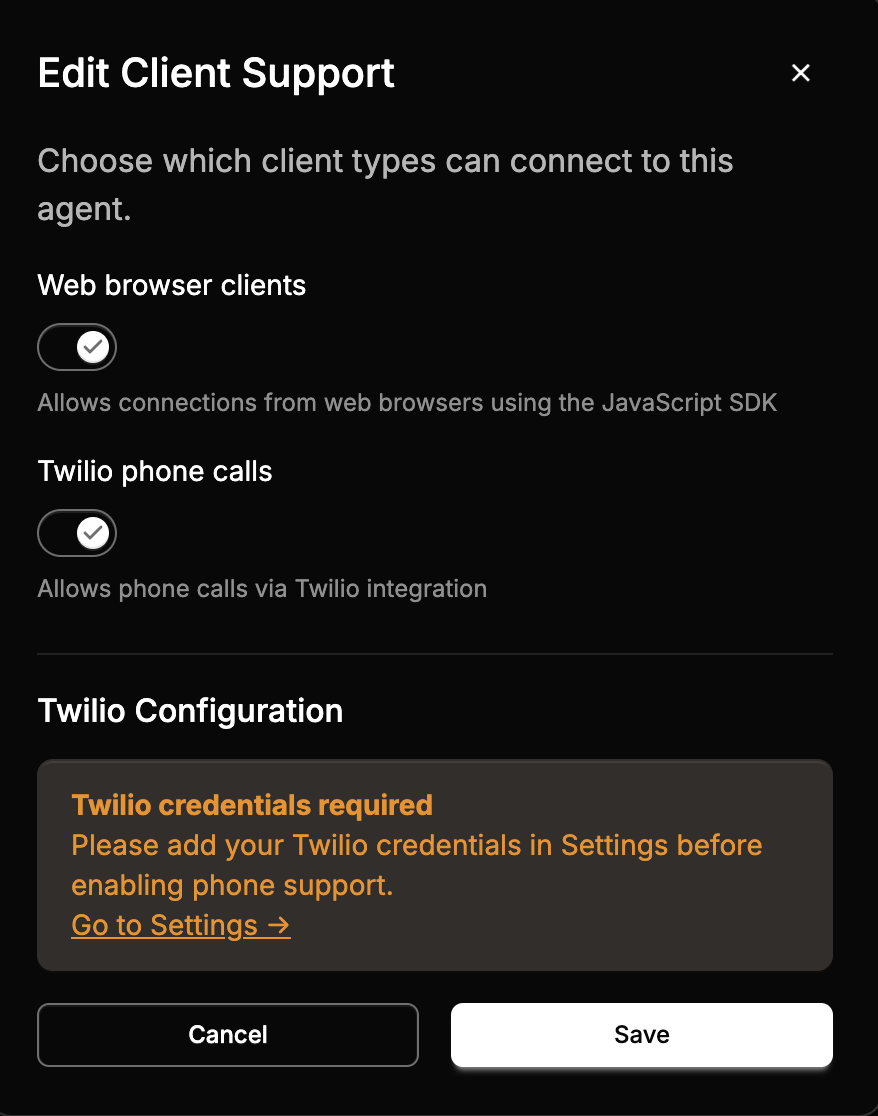
2. Open the client settings, enable Twilio phone calls, and then save changes.
 3. Go to the Layercode settings at [https://dash.layercode.com/settings](https://dash.layercode.com/settings).
4. Add your Twilio Account SID and Auth Token, then save.
3. Go to the Layercode settings at [https://dash.layercode.com/settings](https://dash.layercode.com/settings).
4. Add your Twilio Account SID and Auth Token, then save.
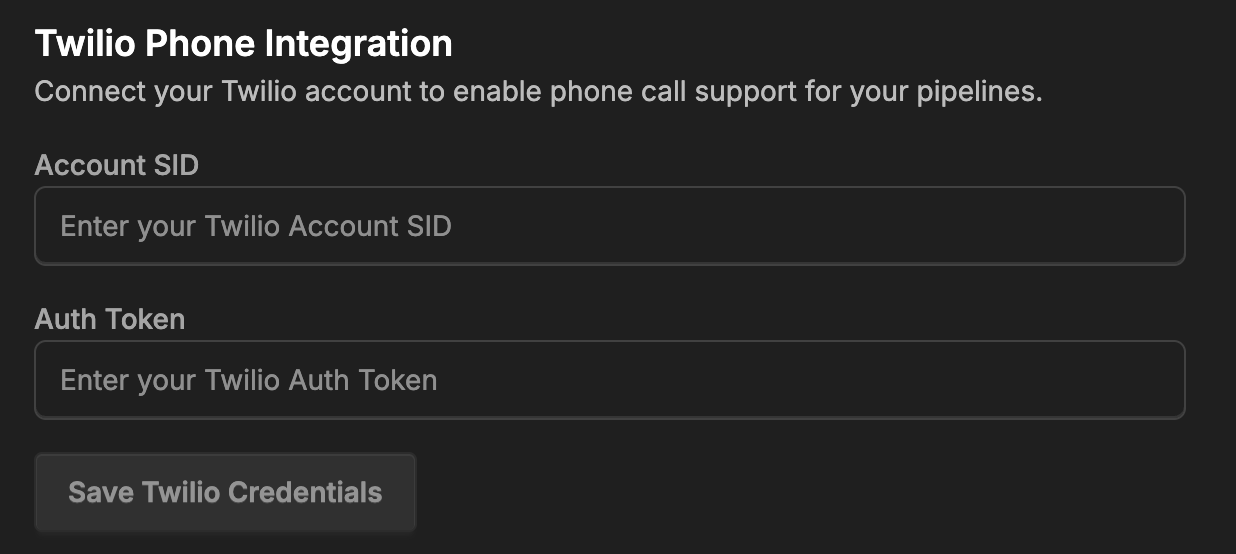 Twilio recently changed where the Auth Token and Account SID are displayed. In the Twilio Console, use the search bar to find “Account SID” and “Auth Token”.
5. Return to your agent's client settings. You should now be able to select a Twilio phone number.
If you don't see your number, refresh the page. Ensure the number is in the same Twilio account as the credentials you added.
You can assign multiple Twilio phone numbers to a single agent. For each call, Layercode stores the
Twilio recently changed where the Auth Token and Account SID are displayed. In the Twilio Console, use the search bar to find “Account SID” and “Auth Token”.
5. Return to your agent's client settings. You should now be able to select a Twilio phone number.
If you don't see your number, refresh the page. Ensure the number is in the same Twilio account as the credentials you added.
You can assign multiple Twilio phone numbers to a single agent. For each call, Layercode stores the from/to phone numbers (and country codes) on the session. See the [REST API](/api-reference/rest-api#sessions) for retrieving these details along with transcripts and recordings.
6. Test by calling the number. For a quick check, set a short welcome message in Layercode (for example, "Hello from Layercode").
7. To run Twilio in production, you will need a backend where you can run your LLM flow. You should review one of our backend tutorials, for example, check out our [Next.js quick start](/tutorials/getting-started.mdx). And you can consult the [reference on webhooks](/api-reference/webhook-sse-api#webhook-request-payload) to see how you can receive the `from_phone_number` and `to_phone_number`.